
How to Choose the Best Photo for a Custom Puzzle
A meaningful photo is only the starting point. Sharpness, composition, contrast, and crop room determine how clearly it prints—and how enjoyable the finished puzzle is to solve.
By the PieceCraft editorial team · Updated August 9, 2026 · 8 minute read
Five checks before you use a photo
A photo that passes all five checks is likely to print clearly and produce a balanced puzzle. Treat them as a first review; the final crop and chosen piece count still matter.
- The main person, pet, or place is easy to identify.
- Important faces and details sit away from the outer edges.
- The image is sharp, well lit, and at least 3000 × 2100 pixels.
- There is enough color, texture, or background detail for the chosen piece count.
- You are using the original file—not a screenshot or social-media download.
Four qualities that make a strong puzzle photo
Evaluate the image as a whole rather than focusing only on its sentimental value. The strongest choices give the eye a clear place to begin and enough visual variation to support the solving experience.
1. Clear composition
A viewer should immediately understand the picture. One clear focal point works well, while a group or landscape benefits from distinct regions such as people, sky, water, foliage, or architecture.
Avoid clutter that hides the subject or a tilted horizon that will feel more obvious once cut into pieces.
2. A subject that is large enough
Faces, pets, signs, and other meaningful details should remain recognizable at normal viewing size. If the people look tiny on your phone screen, they may become difficult to identify in print.
Choose the original photo or crop closer before uploading—but leave comfortable space around heads, hands, and paws.
3. Contrast, color, and texture
Solvers use color changes, edges, and texture as clues. A pet that contrasts with the background, colorful clothing, textured scenery, and varied light all create useful puzzle regions.
Large areas of plain sky, grass, water, dark clothing, or a studio backdrop increase difficulty—especially at 1,000 pieces.
4. Room for a landscape crop
PieceCraft puzzles use a landscape format. Very tall portraits will lose more from the top and bottom, while extra-wide panoramas lose more from the sides. Keep essential content toward the center.
Always inspect the upload preview; it shows the actual composition before you continue.
What resolution should a puzzle photo be?
Aim for the original camera file in landscape orientation. These benchmarks match PieceCraft’s upload-quality guidance; total pixel count and the final crop both affect the result.
Leave breathing room around important details
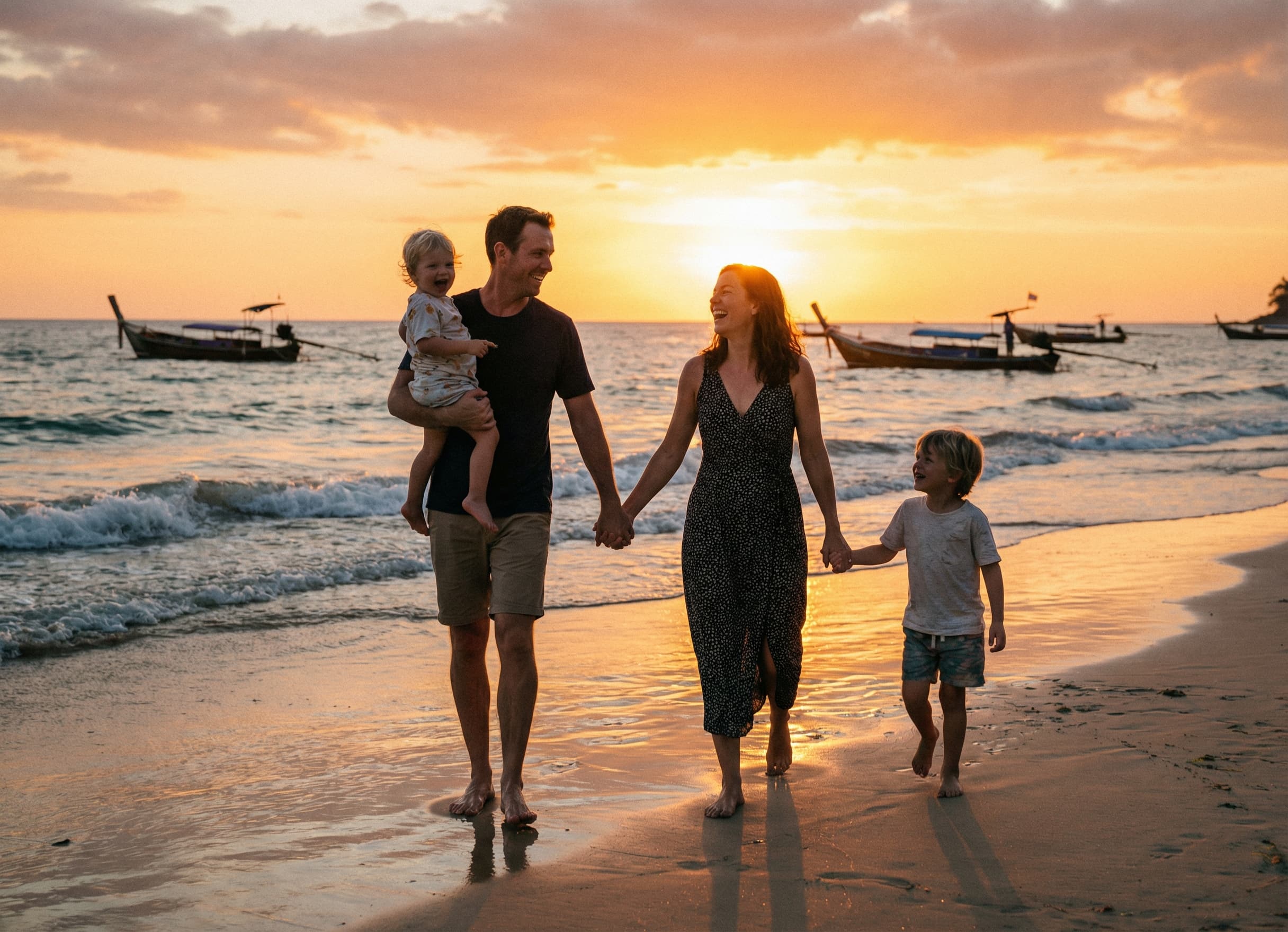
A safe photo keeps faces and meaningful objects away from the outside edge. The comparison below uses the same source image to illustrate how an overly tight crop can remove part of the story.
Everyone remains visible, with space around heads, hands, and feet. The beach, water, boats, and sky also provide solving clues.
The outer subjects are cut off and useful background detail disappears. This is an illustrative crop—the upload preview lets you correct it.
Judge the whole image—not just the subject
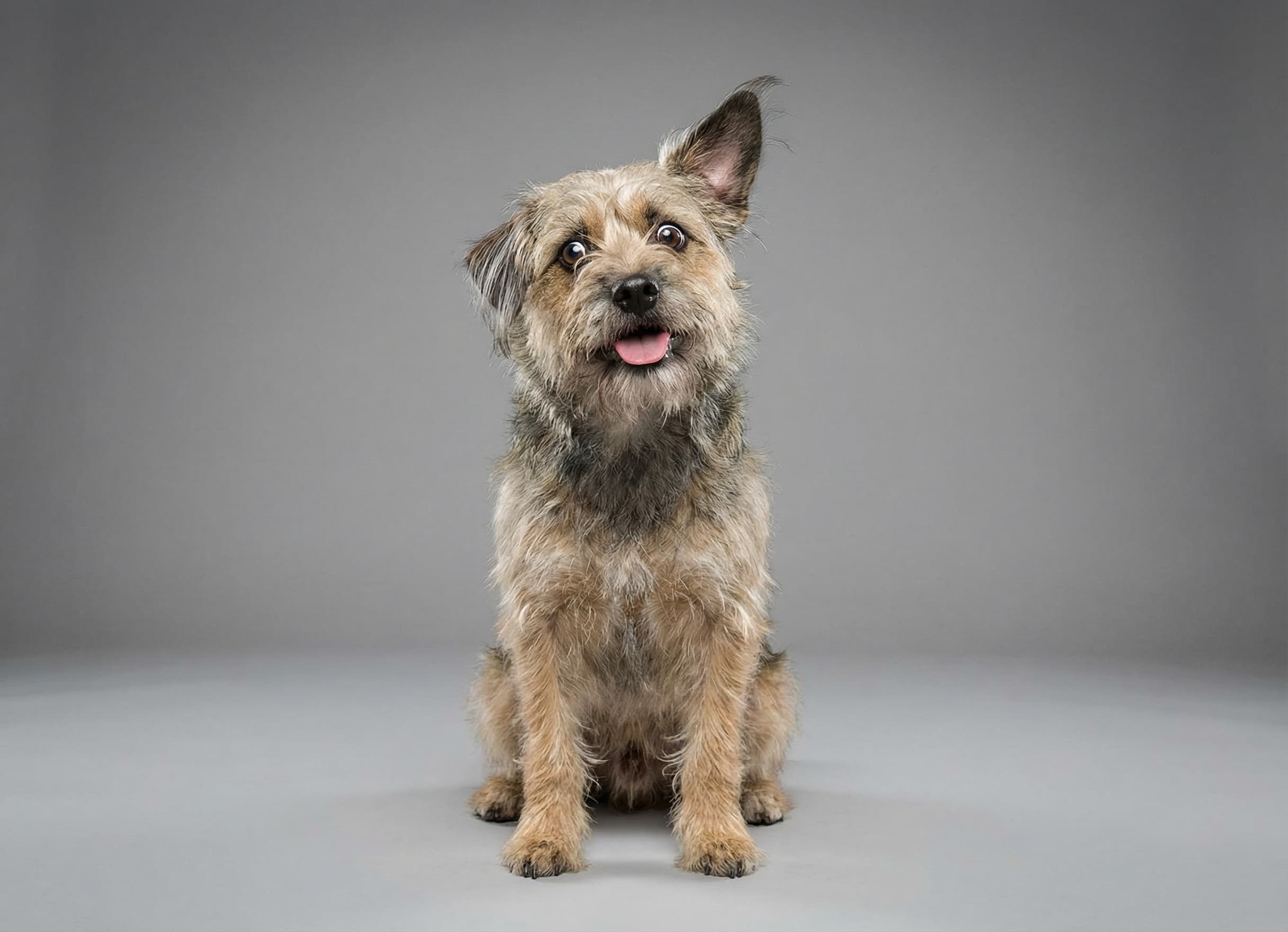
The dog is large, centered, and detailed. The plain background is manageable at 252 or 500 pieces but deliberately harder at 1,000.
The scene has excellent color and texture, but the backlighting darkens facial detail. Check the preview or brighten shadows before uploading.
IllustrationBlur becomes more noticeable in print. Do not use thumbnails, screenshots, or images downloaded from messaging and social apps when the original is available.
Choose more visual detail as the piece count rises
Piece count changes how demanding the same image feels. More pieces reward photographs with several distinct colors, textures, edges, and regions.
252 pieces
Best for a relaxed activity, younger or occasional solvers, and portraits with simpler backgrounds.
500 pieces
A balanced choice for families, pets, couples, and travel photos with several colors or textures.
1,000 pieces
Choose a sharp, detailed scene with varied regions. Plain skies, grass, water, and dark areas become a serious challenge.
A simple phone-photo workflow
- 1Open the photo in your main camera library and confirm it looks sharp when you zoom in.
- 2Use the original image or a full-quality export. Avoid screenshots and files saved from chat apps.
- 3Straighten the horizon, make modest brightness adjustments, and avoid heavy filters or sharpening.
- 4Upload the landscape version, review the quality message, and reposition the crop around important details.
- 5Preview the chosen art style and piece count before proceeding to checkout.
When you are ready to use your photo
Start creating your custom puzzle by uploading the original photo. You will review its resolution and landscape crop before choosing a style and proceeding to checkout.
Start with Your PhotoThis opens the custom-puzzle creation flow. No purchase is required to preview your crop.